
Looking for the best email client?
There are dozens of open source, free or premium email clients for Windows available in the market – Microsoft Outlook, eM client, Claws mail, Opera Mail, Nylas mail, Inky and so on. So why do millions of people use Mailbird instead – for personal as well as professional purposes? That’s because Mailbird is way more than just another free email client. It has several unique features that you won’t find on any other desktop email client or web-based email client. In addition to email, Mailbird acts as a command center for your business by integrating with several other communication and task-management tools. Mailbird also has the advantage of being highly customizable. You can play around with several features, inboxsettings, and other integrations until it’s just perfect for your unique needs.
What Makes Mailbird the Best Email Client for Windows 10 users?
Unlike default Windows clients such as Microsoft Outlook and the Mail app, Mailbird is designed to be easy to set up, use and customize. You can be up and running with your existing email accounts in just minutes. Mailbird even detects server settings automatically so that you don’t have to tinker with any IMAP settings even when you connect multiple email providers or multiple email accounts. Better yet, you will enjoy going through your email inbox even more with Mailbird because it allows you to change everything about it to match your needs and style. With dozens of features and integrations, Mailbird is the best email client for your business. Here are the top features and benefits of Mailbird that we will talk about in this article. You can click on the links below to go to a specific section.
1. Respond to Emails Like a Boss
2. Do More with Attachments
3. Customize your experience
4. Declutter your Mail
5. Manage your contacts with ease
6. Save time with Nifty Shortcuts
7. Communicate effectively
8. Instant Messaging Integrations
9. Manage your projects on the desktop
10. Never Miss A Task
11. Work with Google App Integrations
Top 11 reasons why you should choose Mailbird – the Best Email Client for Windows 10
1. Respond to Emails Like a Boss
Let’s admit it. Replying to long email threads, especially those with multiple questions can be extremely confusing, regardless of which email service you use. You may end up replying to the wrong email address, hitting ‘reply all’ on a long email chain, or missing out answering an important question. An average employee receives around 120+ emails each day. So mistakes like this are bound to happen sooner or later. But what if you could eliminate these mistakes all together? Mailbird users can do it with our in-line reply feature.
In-line Replies
In-line replies guarantee error-free replies. So what exactly is that? Let’s say you are just back from a long vacation. You find a ‘welcome back’ email from a co-worker waiting in your inbox with an invite to an event. Now, her email has three questions. Usually, you would craft a reply with all your responses bunched together. However, such a reply can be incoherent or even confusing. You might also forget to answer a particular question. With an in-line reply, on the other hand, you can place your answers directly underneath their questions.
Here’s how it looks:
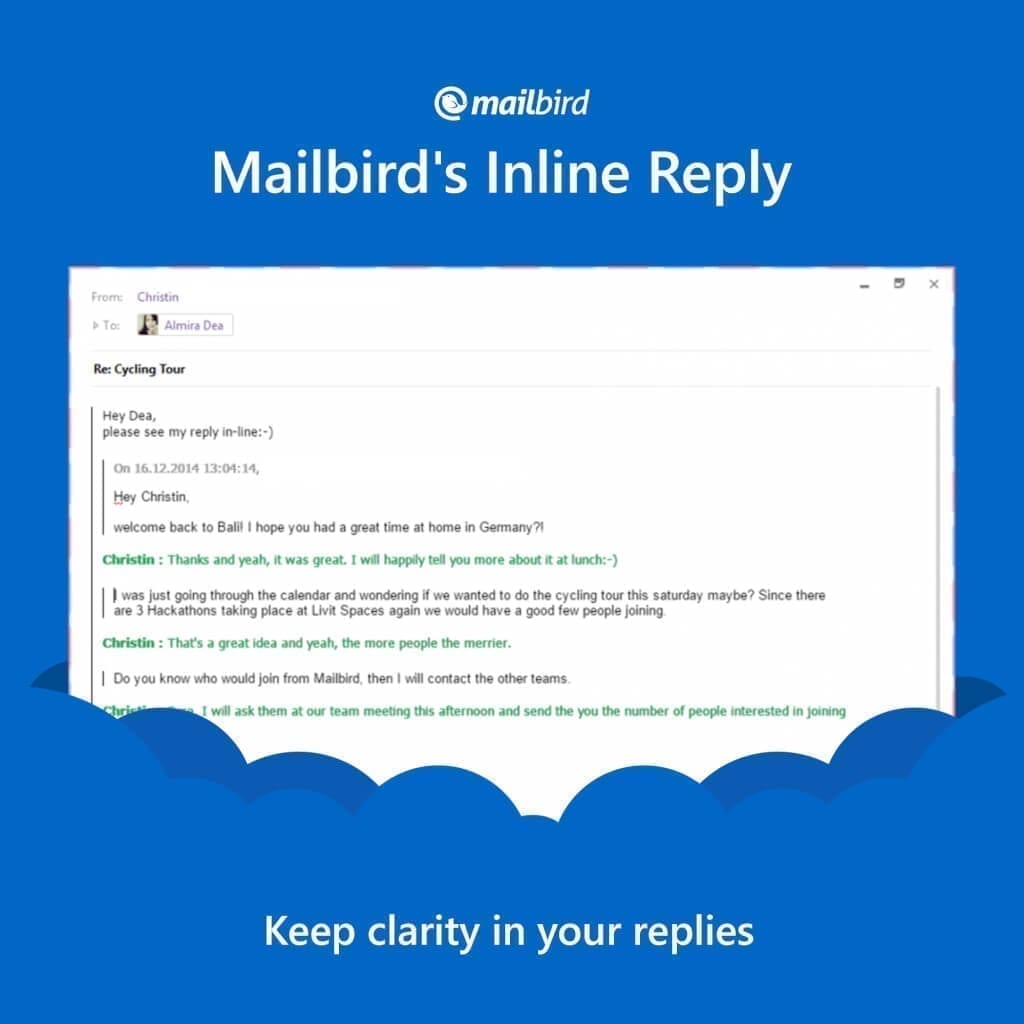
Using in-line replies when you are talking about multiple subjects makes it super simple for the recipient to understand each response. Your responses are automatically noted as yours – with your name and everything – when typing responses inline. Our in-line reply feature helps make email communication more effective. Used in the right situations, it can save you time and avoid confusion.
Unclutter your email with Mailbird. Give it a free try now.
Follow-up Reminders
Follow-up reminders are one of the most useful features for users who are marketing professionals. On an average, marketers send around 7-8 follow-up emails per campaign. Given the quantum of follow-up emails that need to be addressed, there is a chance that some of them may slip through the cracks. That’s when a follow-up reminder service likeFollowup.cc comes to save the day.
Use the Followup.cc addon with Mailbird, to schedule follow-up reminders through emails.

2. Do More with Attachments
Mailbird has specific features that make it easy for you to deal with attachments.
Attachment Search
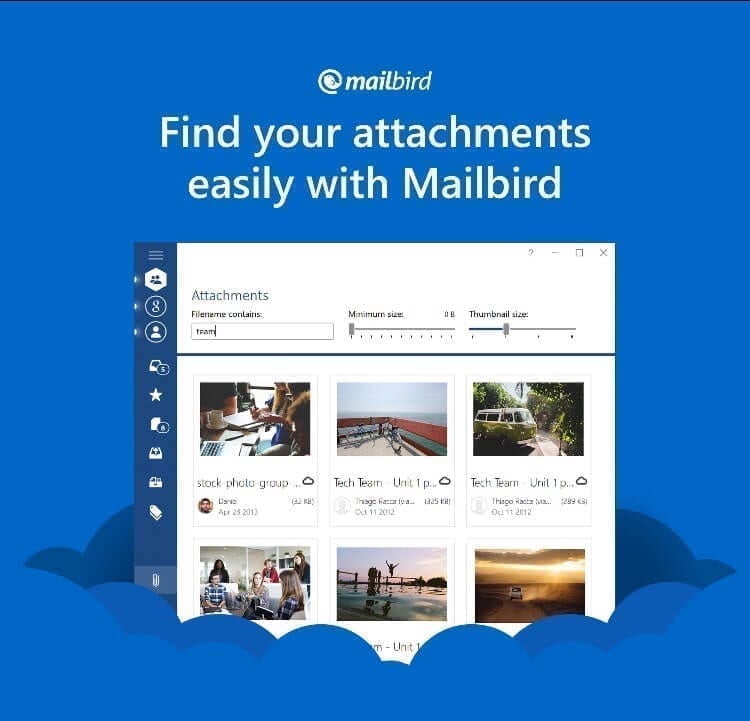
Forgotten that design image you sent your colleague the other day? Or looking for that important PDF white paper that you read ages ago? Instead of rummaging through your inbox, just run a quick search through the Attachment Search feature on Mailbird. Simply enter a partial file name and the feature runs through all your attachments to find the most relevant one. This is one of our most appreciated features by users.
Attachment Preview
Afraid to open an email attachment from an unknown email address? Avoid the risk of downloading files from any mail app that could have potential viruses by using the Attachment Preview feature. This Mailbird feature allows you to take a look at the .pdf, .doc or .jpeg without opening the file. This feature also comes in handy for looking at large files without downloading them.
Drag-and-drop feature
When adding attachments, just drag and drop your file onto the composer window to create an attachment. You can even send the attachment in-line, by dropping it directly on the email. This is one of our most used features by users.

Apps for Attachment Handling
Dropbox App
We teamed up with Dropbox to help you deal with large attachments. Simply link your Dropbox account with Mailbird. Once you’re linked, you will be able to see a Dropbox icon at the bottom of the composer window. Access your Dropbox files directly from Mailbird and add them as an attachment to your mail.

Degoo App
An alternative to Dropbox, Degoo is a free data backup service that gives users an automatic, secure online backup. After installing the Degoo App in Mailbird, you will be able to see the app icon in the composer window. Drag and drop large files to the Degoo icon, to upload and attach them to your email.

3. Customize your experience
Mailbird has plenty of features that allow you to customize the interface to just the way you like it! Another cool reason to use it rather than just the web version of an email app.
Get 50% off Mailbird Pro and Mailbird Pro Lifetime.
Background Colors & Themes
One click is all it takes to change the entire Mailbird email client color scheme. Love Captain Kirk? Well, now you can upload your favorite photos as a background theme!
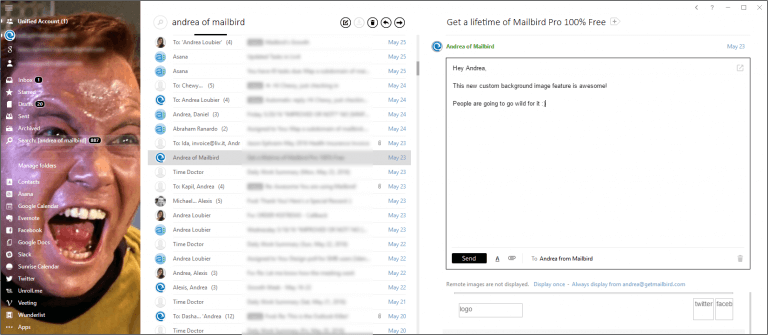
Here are some more cool custom photo themes that you can try out.
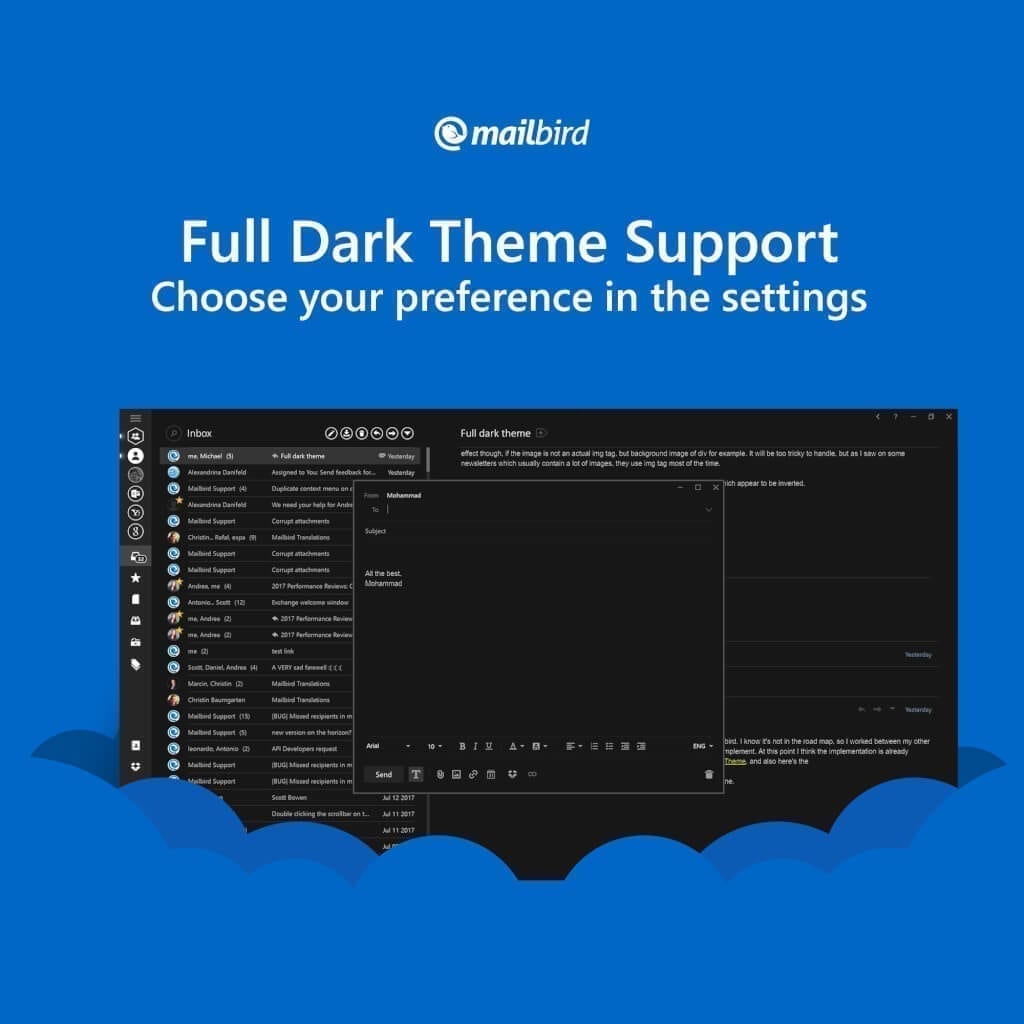
Give your eyes a rest with the full dark theme. Perfect for pulling an all-nighter.
Custom Layouts
Small screen? 3 column? Preview? No matter how you prefer to check and manage your inbox, Mailbird can suit your needs with its custom interface feature. This enables you to have the ideal workspace for your screen size.

Personalized Signatures
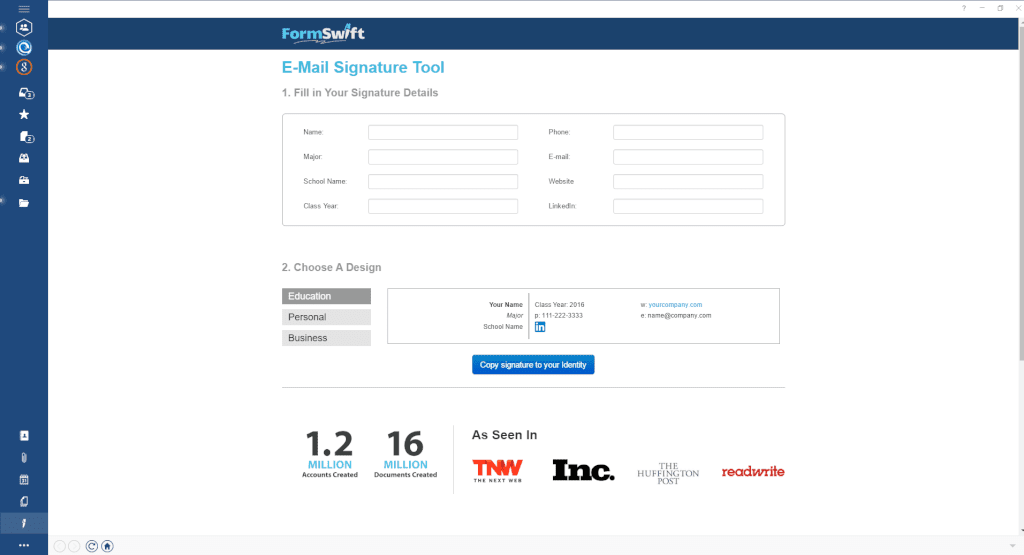
Email signatures are underrated. They are primarily an online business card. A well-designed signature can help drive traffic to your website and promote your brand. Create professional email signatures with Formswift. Just fill in your contact details and choose a design, and this app generates a cool signature that you can copy.
More Custom Options
Customize the email notification sound in your email accounts by uploading any audio you wish. Be notified of new emails by the Super Mario coin sound effect, lightsaber or even the entire Star Wars theme! You can also edit your welcome message – we suggest some motivational quotes before you start your day. All our personalization features are available in our free version.
4. Declutter your Mail
Unified Inbox
One inbox, multiple email accounts. Mailbird makes it easy to manage emails from multiple accounts with its unified inbox. It also makes it easy to understand which account the email was sent to, and which email account you are sending from when replying or composing. Multiple email accounts are shown with your name and email address linked to it.
How do you know what email comes from which email accounts? Unified Color Indicators. Distinguish your multiple email accounts with hundreds of color options.
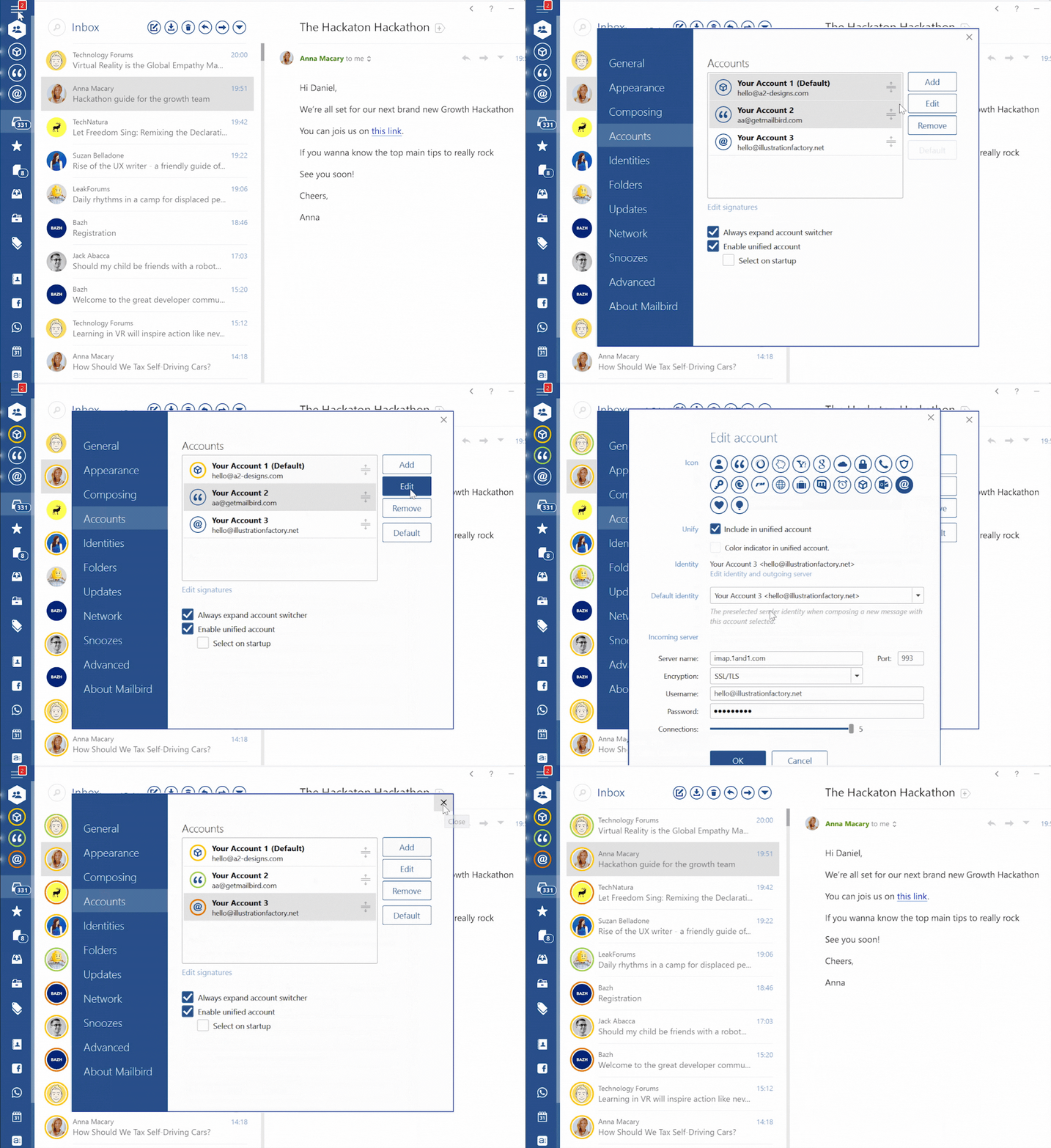
Note: Try turning off your two-factor authentication if you are experiencing any issues when connecting Gmail accounts. Keeping two-factor authentication switched on may interfere with the connecting process.
Snooze Feature
There are two kinds of people – those who like their inbox down to zero, and those who mark emails as unread in their inbox so that they can get to them later. It is just a matter of your outlook towards email inboxes. Keeping this in mind, we developed the ‘Snooze’ feature.
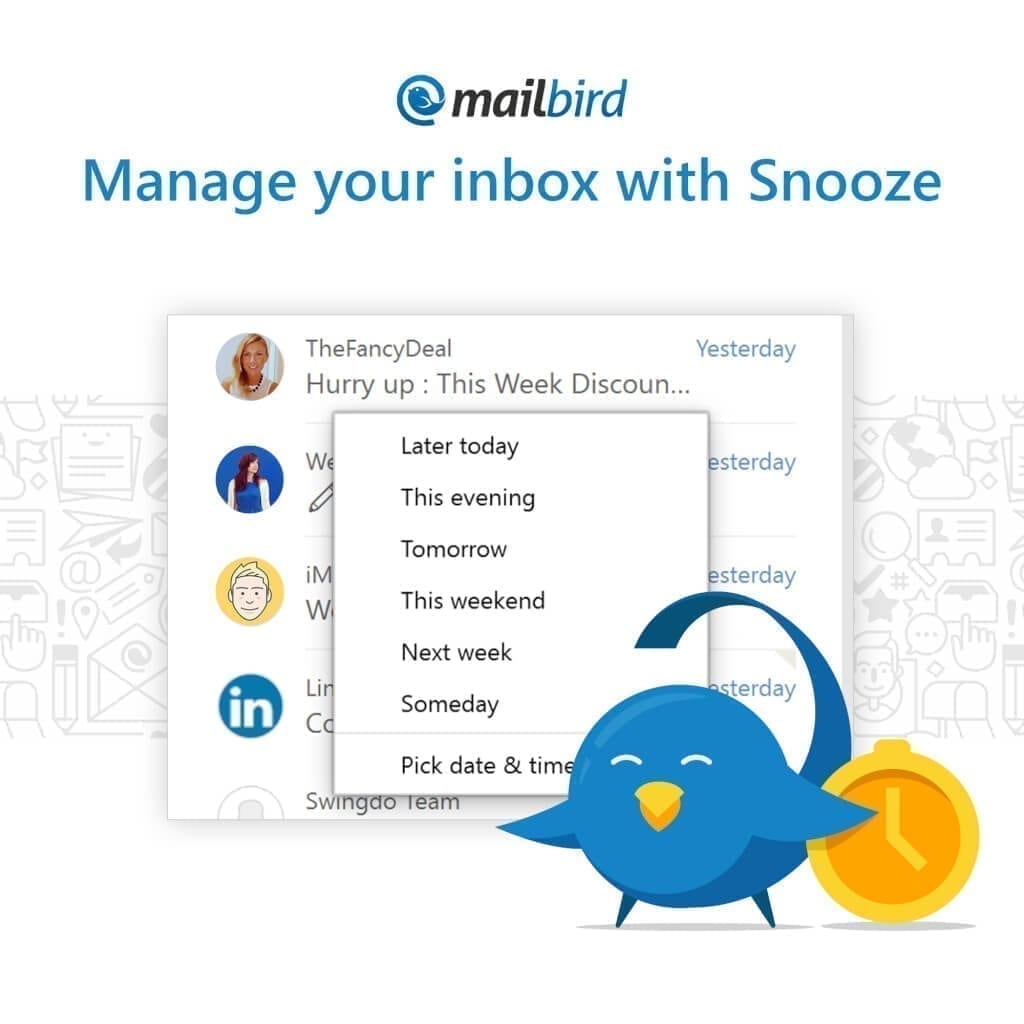
Don’t have enough time to respond to your mail? Do it later. Snooze your emails and get a reminder to get back to them tomorrow, next week, whenever. Snoozed emails are automatically sent to the Snooze folder. Perfect for those who prefer a clean inbox.
5. Manage your contacts with ease
We understand what your contacts mean to you. These crucial contacts keep your business and personal connections thriving. That is why we spent a year perfecting our ridiculously awesome contacts feature.
Contacts Syncing
Here’s how Contacts Syncing works. Import all contacts from your multiple accounts in Google and Outlook. The Mailbird email client imports contacts from Outlook and Thunderbird email accounts at the click of a button. Agree to proceed permissions. And within 20 seconds all your contacts should show up on screen.
Linking Duplicate Contacts
After the sync, you might find some duplicates. Simply link those contacts together to unify them into one entry.
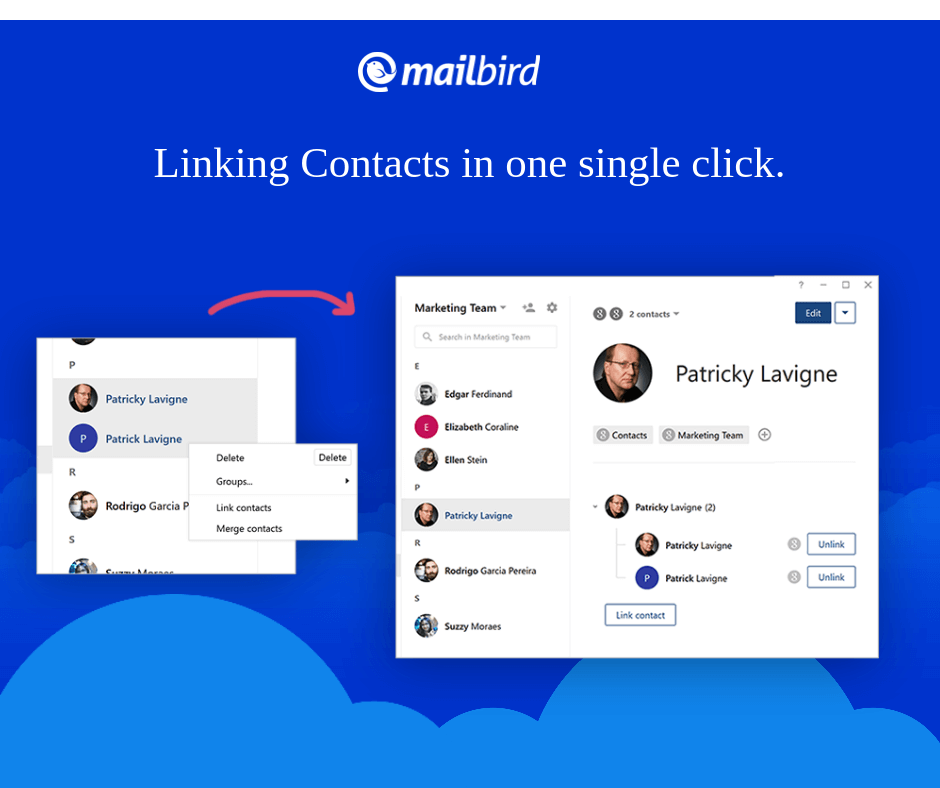
In some cases, you might find contacts that are not 100% identical. For example, a contact may have differently spelled first names in two entries. You can go to the unified contact and check the first name you would like to display in the contact.
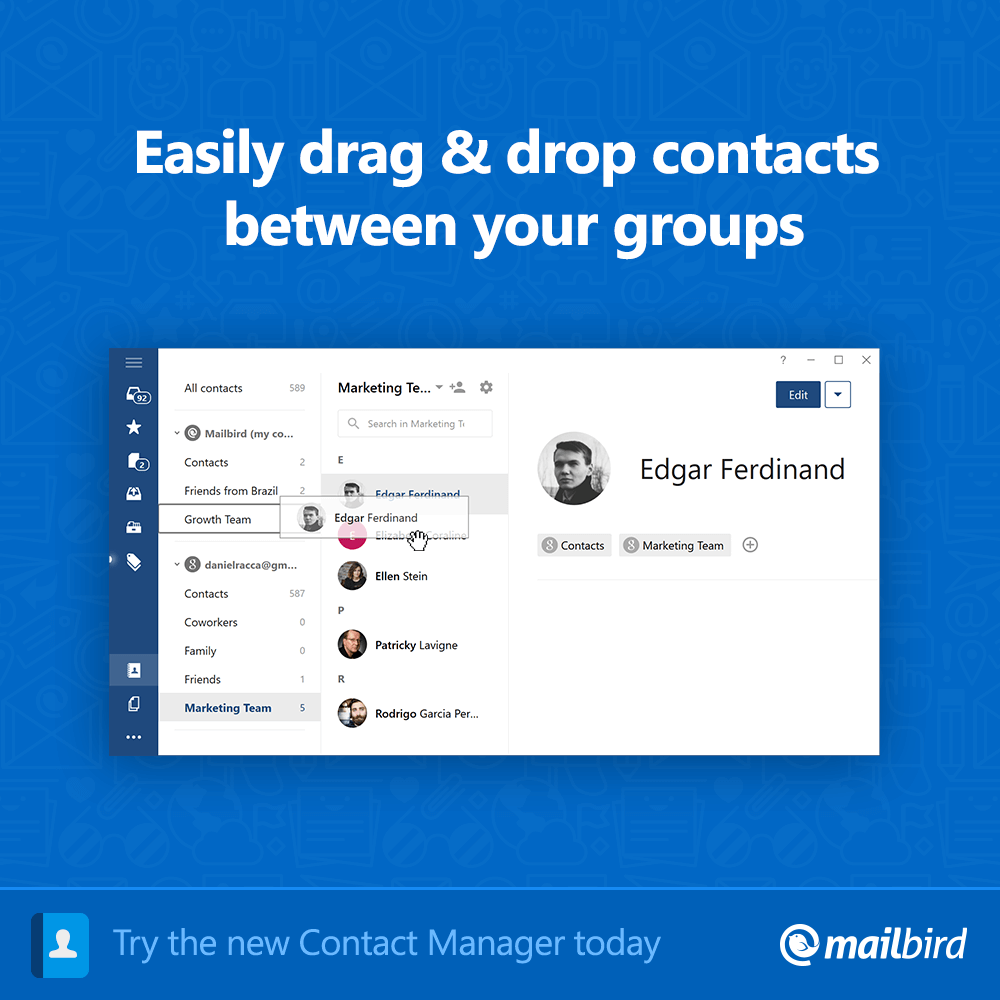
Copying Contacts
Just like Outlook, Mailbird allows you to create contact groups. You might want to copy certain contacts from one of your email accounts to another email account. To make things easy for you when you choose Mailbird email client for managing your multiple accounts and contacts, we have taken the time to make it so you can drag & drop contact entries to any contact group or email accounts you want using the copying contacts feature in our email app.
6. Save time with Nifty Shortcuts
What makes Mailbird the best email client for people in a hurry? Shortcuts. Tons of them.
Keyboard Shortcuts
Fly through your inbox with dozens of keyboard shortcuts. Open and close windows, report spam, archive, compose, send emails and more with a few touches. We believe that the Quick Compose shortcut is the best one. Just hit Ctrl + Alt + Space, and the Mailbird compose window will be brought to the front.
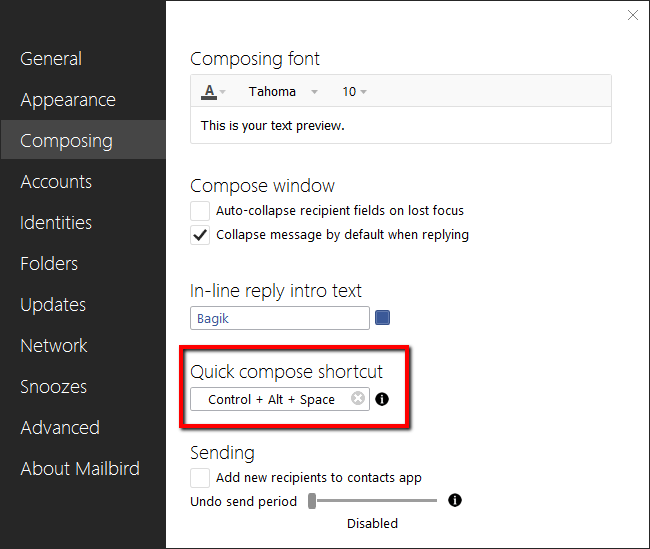
We understand that it would be tough to memorize all of these shortcuts. So we created some cool Windows desktop backgrounds to help you remember a wide array of shortcuts.
Quick Action Bar
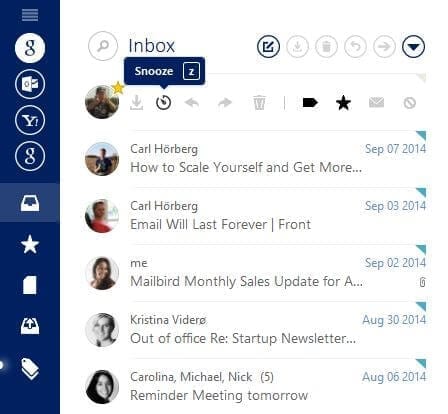
Don’t like shortcuts? Mailbird’s Quick Action Bar shows a menu next to the sender’s picture that lets you archive, snooze, reply, forward, delete an email, mark as important, star or mark as spam, all with a few mouse clicks.
Speed Reader
Reading emails takes too long. We spend around 2.5 hours each day reading, processing and sending emails – losing valuable time in the process. So how do you quicken this process? By speed reading of course. Increase your reading speed by at least 3x using the Mailbird Email Speed Reader. The Reader displays one word at a time – quickly zipping through the long email. Mailbird is the only free email client with a built-in speed reading feature.
Still not sure? Read more about this feature on TechCrunch.
Unclutter your email with Mailbird. Give it a free try now.
7. Communicate effectively
Let’s face it. There is one thing emails suck at – helping teams brainstorm and collaborate. But that doesn’t mean Mailbird can’t help your team work over email.
Appear.in App
To solve the collaboration-over-email problem we teamed with the good folks at Appear.in. The app allows you to create ‘rooms’ and hop on a group call with your team members. You can also browse through your mail and attachments during a video conference call. The best part? You don’t have to install additional software.
Veeting Room App

Veeting Rooms is a virtual meeting environment that allows users to have a virtual business meeting right from within Mailbird.
Just like an office meeting, no unauthorized person will be able to listen to your important conversations. All audio and video communication are end-to-end encrypted between the participants.
So what can you do in these virtual meetings?
- Upload Documents- Always be prepared for the meeting. Upload all the necessary documents before the meeting. After the meeting, you receive an email with important documents that were discussed in the meeting.
- Use the Whiteboard– Brainstorm with your participants with the interactive whiteboard. Use shapes or even draw freehand to create flowcharts or diagrams. All slides can be downloaded as PDF for future reference.
- Take down private notes – Ensure accurate record-keeping and follow through on important action points during the meeting.
- Chat with participants – Not everyone can talk at the same time during the brainstorming session. Chat with the less vocal participants through the text chat feature.
Mailbird is also like a complete communication console for your business, which give it a clear edge over email apps like Postbox, Apple Mail, em Client or Airmail.
8. Instant Messaging Integrations
There are times when emails are unnecessary. For example, your boss sends you a list of instructions. You respond to his long rumbling list with a simple ‘Ok’ message. Sounds silly, doesn’t it? For times like these, you need an instant messaging service. Fortunately, Mailbird’s got you covered.
Slack is a powerful team communication tool, that is utilized by around 2.3 million users each day! It allows team members to communicate more quickly, share documents, and more. It even has dozens of amazing bots that automate tons of things that emails can’t. Use Slack when you want a prompt response, or you want to discuss something fast.
Over a billion people. That’s how many people use Whatsapp every day on both Android and iOS devices! Mailbird allows you to use this popular mobile application on your desktop, right alongside your email inbox.

If your email communication gets too long, switch the conversation to Whatsapp mode and get all the information you need in seconds.
9. Manage your projects on the desktop
Chances are you might be using more than one productivity tool. As a result, you would have to switch back and forth between these tools and your mail client. Mailbird fuses these tools so that you can use them all at the same time.
Asana Integration
Asana is a handy project-management tool that allows you to organize and plan workflows, projects, and more easily. The App also appears in a handy sidebar format – so you can see your tasks for the day while browsing your email. Effective multitasking!
Trello App
An alternative to Asana, Trello is a card-based project management tool. Trello mimics real-life project boards to manage the project.
10. Never Miss A Task
To-do lists and note-taking apps are fantastic. From grocery lists to errands, to important tasks, you can keep a checklist for everything! Mailbird has a few cool to-do list apps in the Mailbird App Store to help you get more organized.
Moo.do App
Moo.do turns your email client into a real to-do list that you can organize, prioritize and schedule right alongside all your projects and tasks. You can also drag and drop emails that are relevant to set-tasks.

Todoist App
An alternative to Moo.do, Todoist helps you organize your daily tasks. There is one key difference though – Todoist allows you to create tasks via email. That means you can assign tasks to your co-workers by mail. Don’t forget to add a few additional instructions along with the tasks.

Evernote Integration
Let’s say you receive a long email. To make sense of it, you may want to break it down into smaller points or subtasks. How can you save those points in a note or a memo for easy access? We teamed up with Evernote to create a seamless app that organizes all of your notes, documents, and files.
Here’s what you can do with our Evernote integration:
- Collect, store, share content on social media via ‘Notebooks’
- Organize your notes through tags
- Create to-do list and memos
11. Work with Google App Integrations
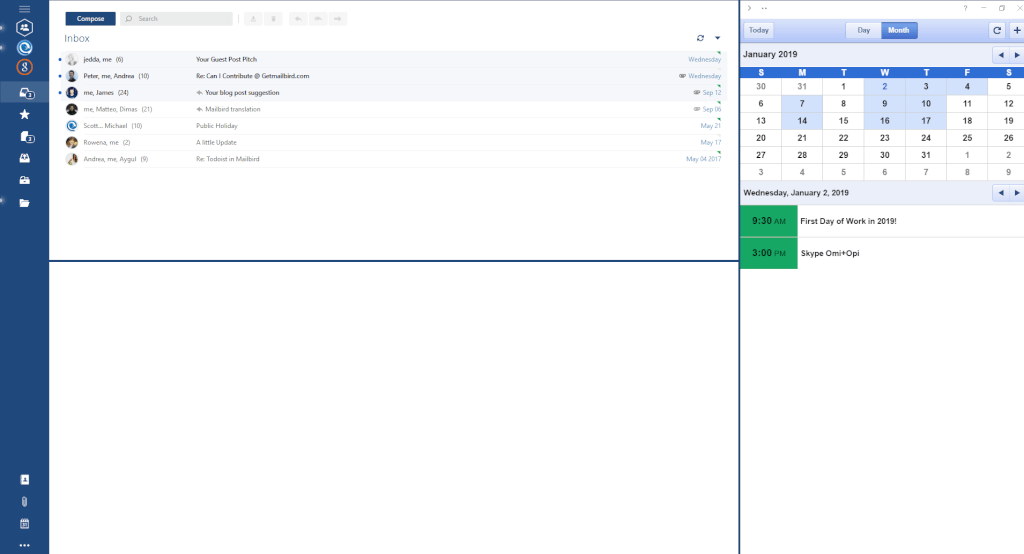
Mailbird has got all your office essentials. Google Drive, Docs, Calendar, Hangouts are all available within the Mailbird browser. All of these apps function just as they would do in a normal browser.
Say Goodbye to your Browser (temporarily)!
Taking a break? Read all your favorite blogs like Lifehacker, Tech Crunch, DailySocial and many more right from your e-mail client. Why not create your reading list with the FeedlyApp? It combines all your favorite blogs and magazines to create a unique new feed – just for you!
Conclusion
Mailbird maximizes your productivity, by combining all your favorite professional tools into a single easy-to-use e-mail client.
We believe that Hubspot sums it up the best – “…this email client unifies your inbox with your apps by rolling your email and all your calendar, task, and messaging apps into an all-in-one interface. And it’s a simple user interface, which you can customize in different colors and layouts.”
All Rights Reserved for Mailbird
 Productivity Hub