
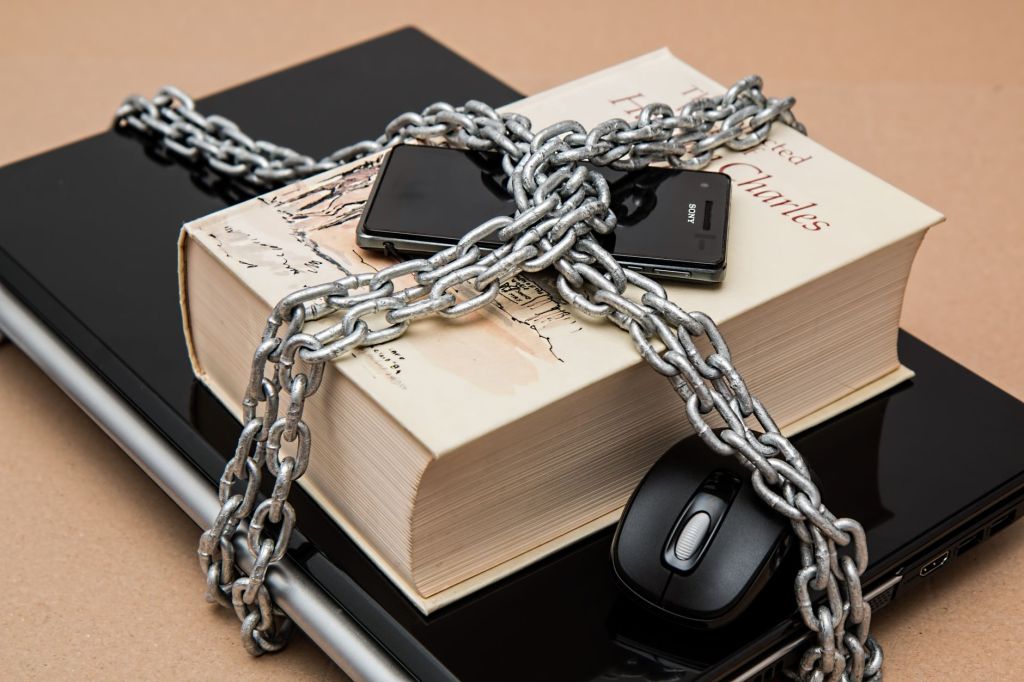
Cover Photo: Pixabay on Pexels.com
Every account you have ever opened, every app you have installed and every form you have filled in leaves a trace. Most of that trail is harmless on its own. Together, it can expose your email, phone number, home area, old passwords and habits to anyone who knows where to look, including scammers who buy leaked data in bulk.
The good news: you do not need to be a security expert to shrink your digital footprint dramatically. This guide walks you through a practical cleanup you can complete over a weekend, then keep up with a few minutes a month.
Key takeaways
- Start by finding out what has already leaked: check your email addresses against public breach databases.
- Lock down your most important accounts first: email, banking and your phone’s main account.
- Use a password manager and turn on two-step verification everywhere it matters.
- Delete old accounts and apps you no longer use. Every dormant account is a risk.
- Tighten privacy settings on your phone, browser and social media, then repeat the check every few months.
Why your digital trail matters more than you think
Data leaks happen to large companies all the time, and you usually have no control over them. What you can control is how useful that leaked information is to a criminal. If a leaked password is unique and already changed, it is worthless. If your accounts are protected by a second verification step, a stolen password alone is not enough to get in.
Think of your digital footprint in three layers:
- What you share on purpose: social media posts, profile photos, reviews, public CVs.
- What companies collect about you: purchase history, location data, app usage, contact lists.
- What leaks without your consent: emails, passwords and personal details exposed in data breaches.
A good cleanup works on all three.
Step 1: Find out what is already exposed
Start with facts, not guesswork.
- Check your email addresses in a breach database. Free services such as Have I Been Pwned let you see whether an address has appeared in known data breaches.
- Use your password manager’s security report if you have one. Many flag reused, weak or exposed passwords.
- Search for yourself. Look up your full name, phone number and email in a search engine and note what appears.
- Write a short list of the accounts that matter most: main email, banking, phone account (Apple or Google), work tools and social media.
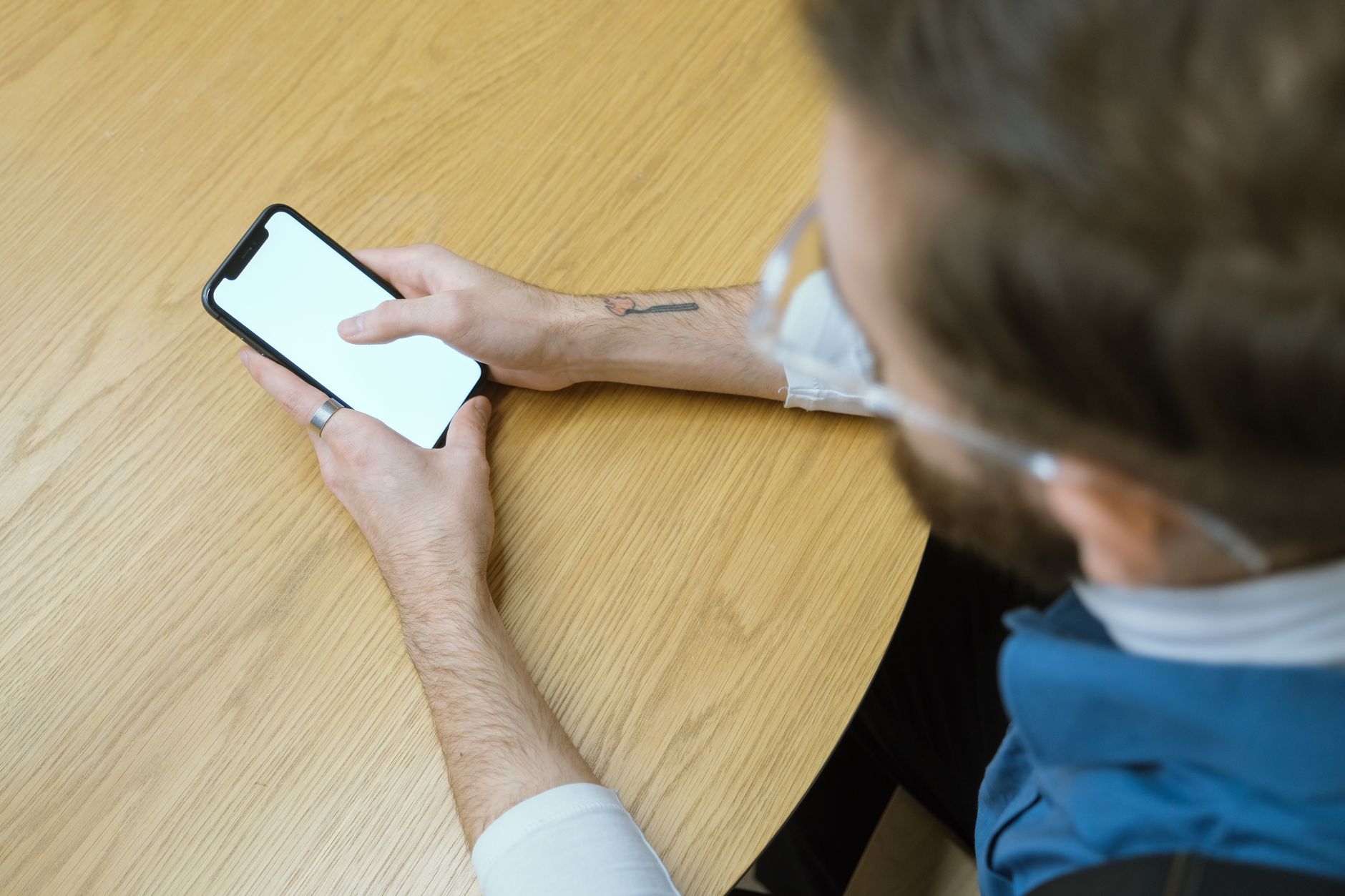
Step 2: Secure the accounts that unlock everything else
Your main email account is the master key: password resets for almost everything else go there. Secure it first, then your banking and phone accounts.
- Change the password to a long, unique passphrase you do not use anywhere else.
- Turn on two-step verification (2FA). An authenticator app or a passkey is generally stronger than SMS codes.
- Review recovery options: make sure the backup email and phone number are current and belong to you.
- Check signed-in devices and sign out of any you do not recognise.
- Review connected apps that have access to your account and remove ones you no longer use.
Step 3: Fix your passwords once and for all
Reusing passwords is the single biggest risk for most people. When one site leaks, attackers try the same email and password everywhere else.
| Approach | Security | Effort | Verdict |
|---|---|---|---|
| Same password everywhere | Very weak | Very low | Avoid |
| Small variations of one password | Weak | Low | Avoid: easy to guess |
| Notebook of passwords at home | Medium | Medium | Better than reuse, but hard to keep up |
| Browser’s built-in password manager | Good | Low | Good start for most people |
| Dedicated password manager | Strong | Low once set up | Best for most people |
| Passkeys where available | Strong | Very low | Use whenever offered |
Set up a password manager, let it generate unique passwords, and update your most important accounts first. You do not need to change every password in one day: work through them as you log in.
Step 4: Close the doors you forgot you opened
Old accounts are easy targets because nobody is watching them. Search your inbox for words like “welcome”, “verify your email” and “your account” to find services you signed up for years ago.
- Delete accounts you no longer need using the site’s account settings.
- If a service makes deletion hard, at least change the password and remove personal details.
- Uninstall apps you have not opened in months, and check which apps have access to your location, contacts, microphone and camera.
- Unsubscribe from mailing lists you never read. Fewer emails also means fewer phishing look-alikes.
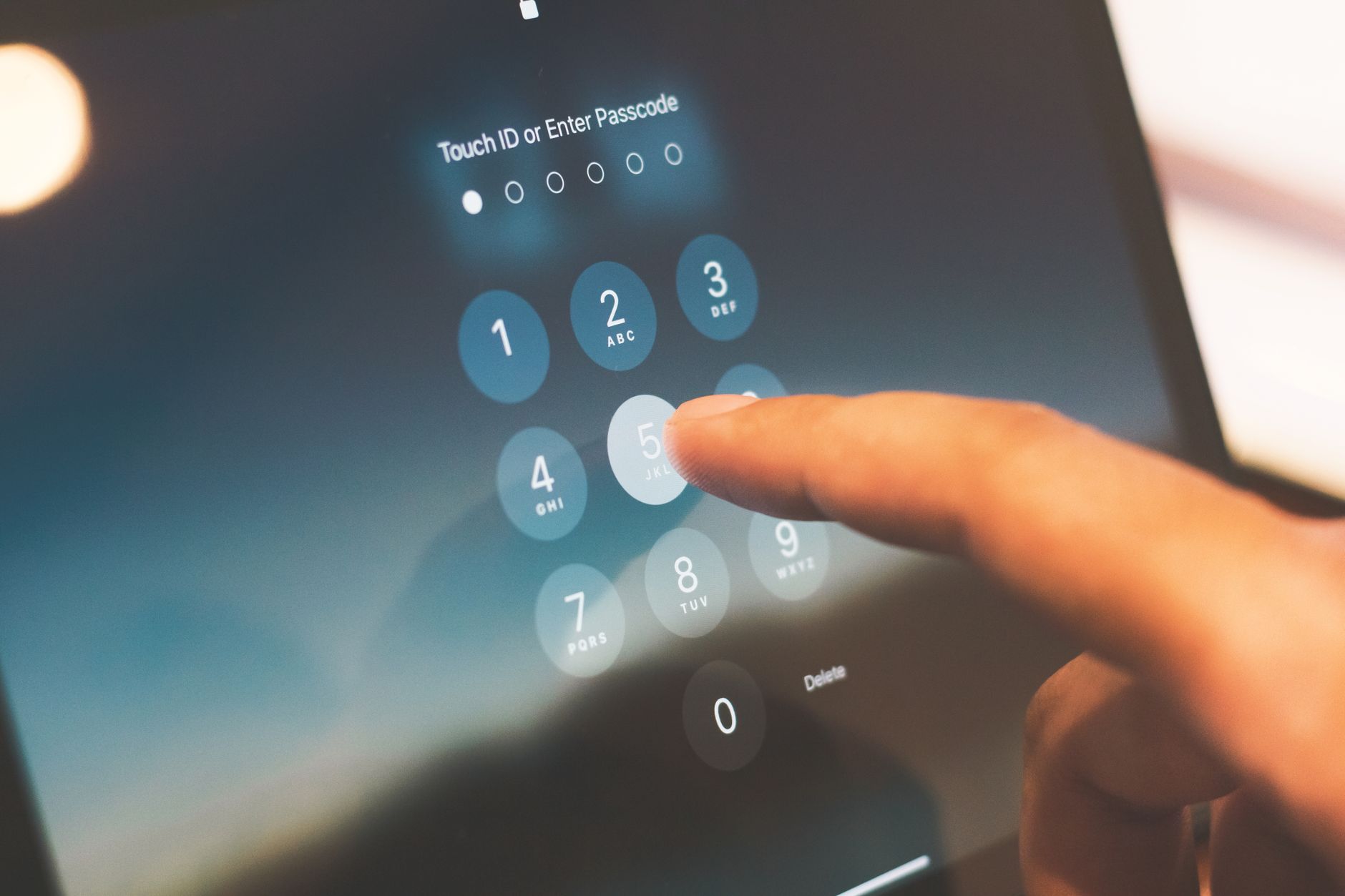
Step 5: Tighten your privacy settings
On your phone
- Review location permissions and set most apps to “while using” or “never”.
- Turn off ad personalisation or limit ad tracking in your phone settings.
- Keep the operating system and apps updated: updates often fix security holes.
In your browser
- Block third-party cookies and enable tracking protection if your browser offers it.
- Remove extensions you no longer use; some collect browsing data.
- Clear saved data for sites you never visit.
On social media
- Make old posts visible only to friends, or archive them.
- Hide your phone number, email and birth date from public view.
- Turn off being found by phone number or email if you do not need it.
Step 6: Reduce what data brokers know about you
Data brokers collect and sell personal information such as addresses, phone numbers and age ranges. In many countries you can ask them to remove your data. The process varies by company and by local law, and paid services exist that send removal requests on your behalf. If you go that route, read reviews carefully and check exactly what the service does before handing over more personal data.
Step 7: Learn to spot the scams that follow a leak
After a breach, criminals often send convincing messages that reference real details about you. Be suspicious of any message that:
- Creates urgency (“your account will be closed today”).
- Asks you to confirm a password, code or card number.
- Comes from a slightly misspelled address or unfamiliar number.
- Contains a link to “verify” your account.
When in doubt, do not click. Open the official app or type the website address yourself.
Your weekend cleanup plan
- Saturday morning (1 hour): check breaches, secure your main email with a new password and 2FA.
- Saturday afternoon (1 hour): set up a password manager and update banking, phone and work accounts.
- Sunday morning (1 hour): delete old accounts and unused apps.
- Sunday afternoon (30 minutes): tighten phone, browser and social media privacy settings.
- Every 3 months (15 minutes): repeat the breach check and review app permissions.
Pair this with a monthly weekly-review habit and digital safety becomes routine rather than a chore.
You cannot stop every company from leaking your data. You can make sure what leaks is useless.
FAQ
How do I know if my email has been in a data breach?
Free breach-check services such as Have I Been Pwned let you search your email address against known breaches. Many password managers also include breach alerts.
Is it safe to use a password manager?
For most people, yes. A reputable password manager encrypts your passwords and makes it practical to use a unique one for every site, which is far safer than reusing passwords. Protect it with a strong master password and two-step verification.
Can I completely erase myself from the internet?
Not completely, but you can remove a great deal: delete old accounts, tighten privacy settings and request removal from data brokers where local law allows. The aim is to reduce exposure, not reach zero.
Is SMS two-step verification good enough?
It is much better than no second step. Where available, an authenticator app or passkey is generally stronger, because text messages can sometimes be intercepted or redirected.
How often should I review my digital footprint?
A quick check every three months is a good rhythm, plus an immediate check whenever a service you use announces a breach.
This guide offers general information, not professional security or legal advice. For a serious incident such as identity theft, contact your bank and the relevant authorities in your country.



Leave a Reply