
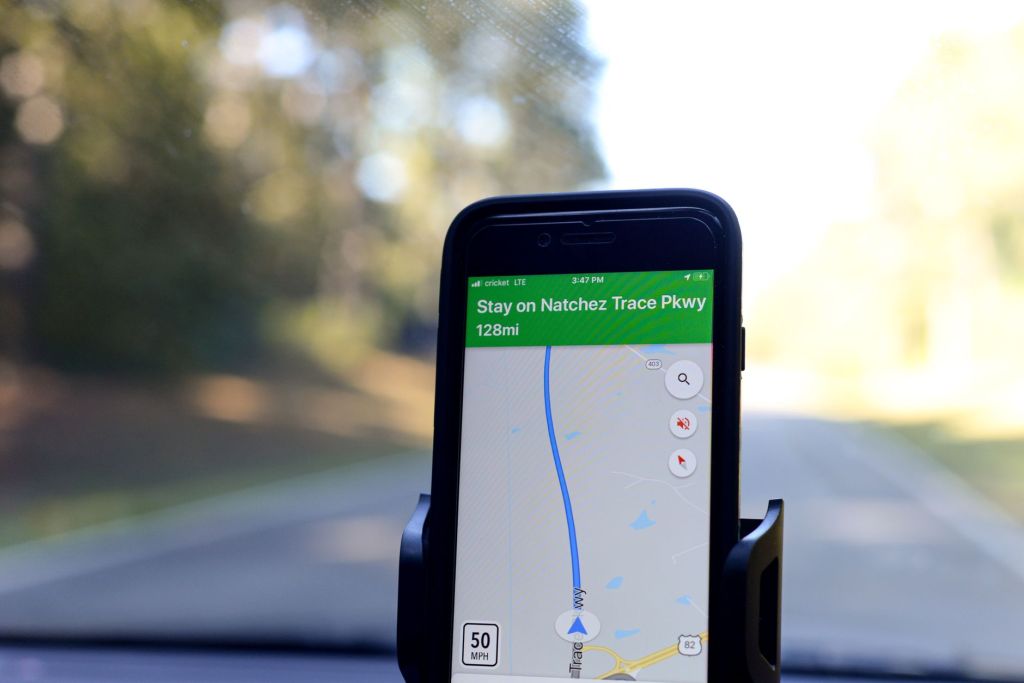
Cover Photo: Photo by Dustin Konrad on Pexels.com
Most of us open Google Maps, type a destination, tap the blue button and never look further. That works, but it leaves a lot of useful tools untouched. With a few minutes of setup, the same app can plan multi-stop errands, keep working when your signal disappears, remember where you parked and help friends find you without endless texts.
This guide focuses on the features that genuinely save time and stress in everyday life, along with a quick setup checklist and a few privacy settings worth reviewing. Menu names and availability can differ slightly between Android, iPhone and your region, so if something looks a little different on your phone, look for the closest equivalent.
Key takeaways
- Download offline maps before trips so navigation keeps working without a signal.
- Use saved places and Lists to turn Maps into a personal guide you can share.
- Add multiple stops to plan errands in one route instead of several.
- Set “depart at” or “arrive by” times to plan around traffic and transit schedules.
- Review Timeline and location settings so you stay in control of your data.
Set up your essentials first
A few minutes of setup makes every later search faster.
- Save Home and Work. Adding these lets you get directions with a single tap and can surface commute estimates.
- Choose your preferred travel mode. If you mostly walk, cycle or use public transport, set it as your default so results match how you actually travel.
- Set route options. In driving settings you can choose to avoid tolls, motorways or ferries where those options are offered.
- Check your units and voice settings. Make sure distances, language and voice guidance volume suit you before your next drive.
Work offline with downloaded maps
Offline maps are one of the most practical features in the app. You can download an area in advance, and Maps will use it for search and turn-by-turn directions when you lose signal, as long as the route stays within the downloaded area.
- Tap your profile picture and look for Offline maps.
- Choose to select your own map, then adjust the box to cover the area you need.
- Tap download, ideally over Wi-Fi, since larger areas can take up a fair amount of storage.
- Check back occasionally: offline maps expire after a while unless updated, and Maps can update them automatically if you allow it.
Offline maps are especially handy for road trips, hiking areas with patchy coverage and travelling abroad when you want to limit mobile data. Note that live traffic and some transit details are not available offline.
Turn saved places and Lists into your personal guide
Instead of relying on memory or screenshots, save places you want to visit or return to. Google Maps lets you organise saved places into Lists, which you can find in the You tab.
Useful list ideas
- Restaurants to try in your city
- A weekend trip itinerary with hotels, cafés and sights
- Trusted services such as your garage, pharmacy and vet
- Quiet places to work or study
Share and collaborate
Lists can be shared with friends or family, which is ideal for planning a group trip. Everyone sees the same set of places on the map, so you can stop pasting links into chat threads. You can also add private notes to saved places, such as “ask for a table on the terrace” or “parking at the back”.
Plan smarter routes
Add multiple stops
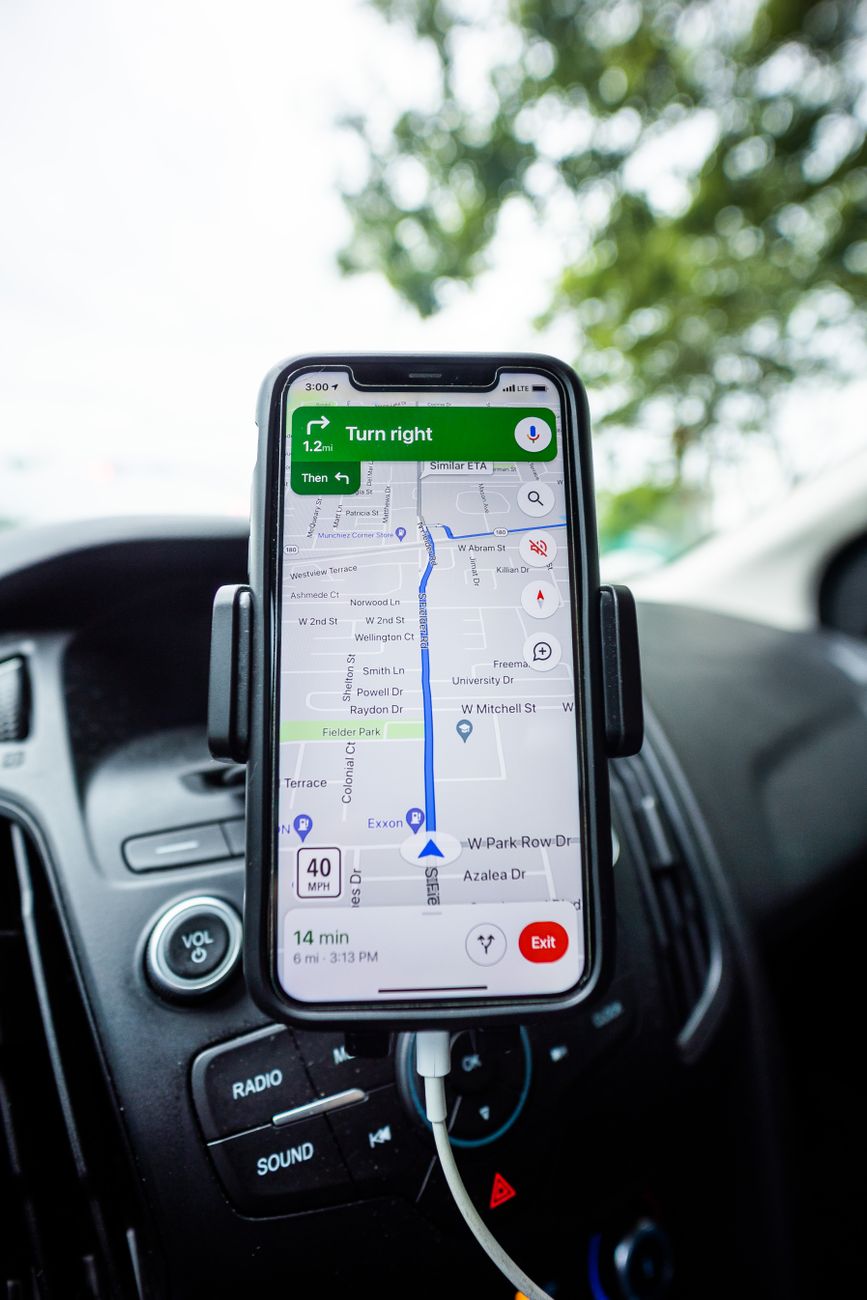
When you have several errands, get directions to your first destination, then use the menu or the add stop option to include more. You can drag stops to reorder them. Planning everything as one route saves you from stopping and re-entering destinations along the way.
Plan for a specific time
Traffic and transit change throughout the day. For driving and public transport, you can usually set a departure or arrival time to see estimates for that moment rather than right now. This is helpful for early flights, interviews or anything where being late is not an option.
Compare travel modes
Before setting off, glance at the tabs for driving, transit, walking and cycling. Sometimes a train plus a short walk beats driving in rush hour, and the app shows the trade-offs side by side.
| Situation | Feature to use | Why it helps |
|---|---|---|
| Patchy signal or travelling abroad | Offline maps | Search and navigate without mobile data |
| Several errands in one trip | Multiple stops | One planned route instead of several |
| Important appointment | Depart at / arrive by | Estimates based on the time you will travel |
| Group trip planning | Shared Lists | Everyone works from the same places |
| Meeting friends | Location sharing | No “where are you?” messages |
| Busy car park | Save parking | Find your car quickly later |
Stay connected with location sharing and parking
Location sharing lets you share your real-time location with chosen people for a set time or until you turn it off. It is useful when meeting friends, travelling alone or letting family know you are on your way. Always share deliberately and only with people you trust, and check periodically who can see your location.
When you park, tap the blue location dot and look for the option to save your parking. You can add notes, such as the level or bay number, and Maps can guide you back later. It is a small feature that can save a lot of wandering in large car parks.
The best Maps features are the ones you set up before you need them.

Walking, transit and the newer AI features
In supported cities, Live View uses your phone’s camera to overlay arrows and directions on the real street, which can make it easier to choose the right way when you exit a station. For public transport, many areas show departures, route details and options such as wheelchair-accessible routes.
Google has also been adding Gemini-powered features to Maps. In March 2026 it announced Ask Maps, a conversational way to ask questions about places and plans in natural language. Availability depends on your country, language and device, and rollouts happen gradually, so you may not see it yet. As with any AI tool, double-check important details like opening hours directly with the business.
Keep your location data under control
Google Maps can be very helpful, but it also handles sensitive information about where you go. A few checks keep you in control:
- Review Timeline. Google has moved Timeline, the record of places you have visited, to storage on your device, with an optional cloud backup. You can see and change how it works in Google’s guide to managing your Timeline, including turning it off or deleting history.
- Check app location permissions in your phone settings and decide whether Maps should access your location always or only while in use.
- Audit location sharing regularly and stop sharing with anyone who no longer needs it.
- Clear search history if you prefer not to keep a record of what you have searched for.
For a wider review of what your account stores, see our step-by-step Google data privacy cleanup.
Common mistakes to avoid
- Downloading offline maps at the last minute on mobile data, or forgetting to check they have not expired.
- Trusting a single estimate for critical trips. Leave a buffer, especially in bad weather or at peak times.
- Interacting with the app while driving. Set your route and stops before you set off, or use voice commands where safe and legal.
- Leaving location sharing on indefinitely with people you no longer need to share with.
- Ignoring local rules. Navigation apps are a guide. Road signs and local traffic rules always come first.
Your 15-minute Maps setup plan
- Save your Home and Work addresses.
- Set your preferred travel mode and route options.
- Download an offline map of your home area and any upcoming trip destination.
- Create two Lists: one for places to try and one for trusted services.
- Review Timeline, location permissions and who you share your location with.
- Next time you park somewhere busy, try saving your parking spot.
Pair this with a tidy phone setup, such as the tips in our guide to iPhone settings that cut daily friction, and your everyday trips will feel noticeably smoother.
FAQ
Does Google Maps work without an internet connection?
Yes, if you download offline maps in advance. You can search and get driving directions within the downloaded area, but live traffic and some transit information need a connection.
Can I share a list of places with friends?
Yes. Lists can be shared so others can view them, and you can invite people to collaborate when planning together.
Is my location history stored by Google?
Timeline is now stored on your device by default, with an optional encrypted backup. You can review, pause or delete it in your settings. Check Google’s help pages for the most current details.
Why don’t I see a feature mentioned here?
Google rolls out features gradually and availability depends on your region, device and app version. Updating the app is the first thing to try.
Is it safe to use Maps while driving?
Set your route before you start and use voice guidance or a properly mounted phone. Always follow local laws on phone use while driving.



Leave a Reply