
Cover Photo: Photo by Zaidan Falaah on Pexels.com
You probably have dozens of passwords, and if you are honest, a handful of them are recycled, scribbled on a sticky note, or one letter away from your pet’s name. That is not a character flaw. Passwords ask humans to do something we are bad at: invent and remember long, random strings for every site we use. Passkeys are the industry’s answer, and they have quietly gone from a promise to something you can switch on today for many of the accounts you use most.
This guide explains what a passkey actually is, why it is harder to steal than a password, how to set one up on the devices you already own, and the few things to plan for so you never lock yourself out.
Key takeaways
- A passkey replaces a password with a cryptographic key pair: the private half never leaves your device or password manager.
- Because a passkey is tied to the real website, it cannot be typed into a fake login page, which makes it strongly resistant to phishing.
- You unlock a passkey the same way you unlock your phone: fingerprint, face or device PIN.
- Passkeys can sync through Apple, Google, Microsoft or a third-party password manager, so a new phone does not mean starting over.
- Keep at least one recovery route (a second device, a security key, or recovery codes) for every important account.
What a passkey really is
A passkey is a login credential built on public-key cryptography and on open standards developed by the FIDO Alliance and the W3C. When you create one for a website, your device generates two mathematically linked keys. The public key is stored by the website. The private key stays with you, protected inside your phone, computer or password manager.
When you sign in, the website sends a one-time challenge. Your device signs it with the private key, but only after you confirm it is you with a fingerprint, a face scan or your screen-lock PIN. The site checks the signature against the public key it holds, and you are in. No secret ever travels across the internet, and nothing reusable sits on the company’s servers waiting to be leaked.
An important detail: your fingerprint or face is not sent to the website. Biometrics only unlock the key locally on your device. The website just learns that a valid signature arrived.
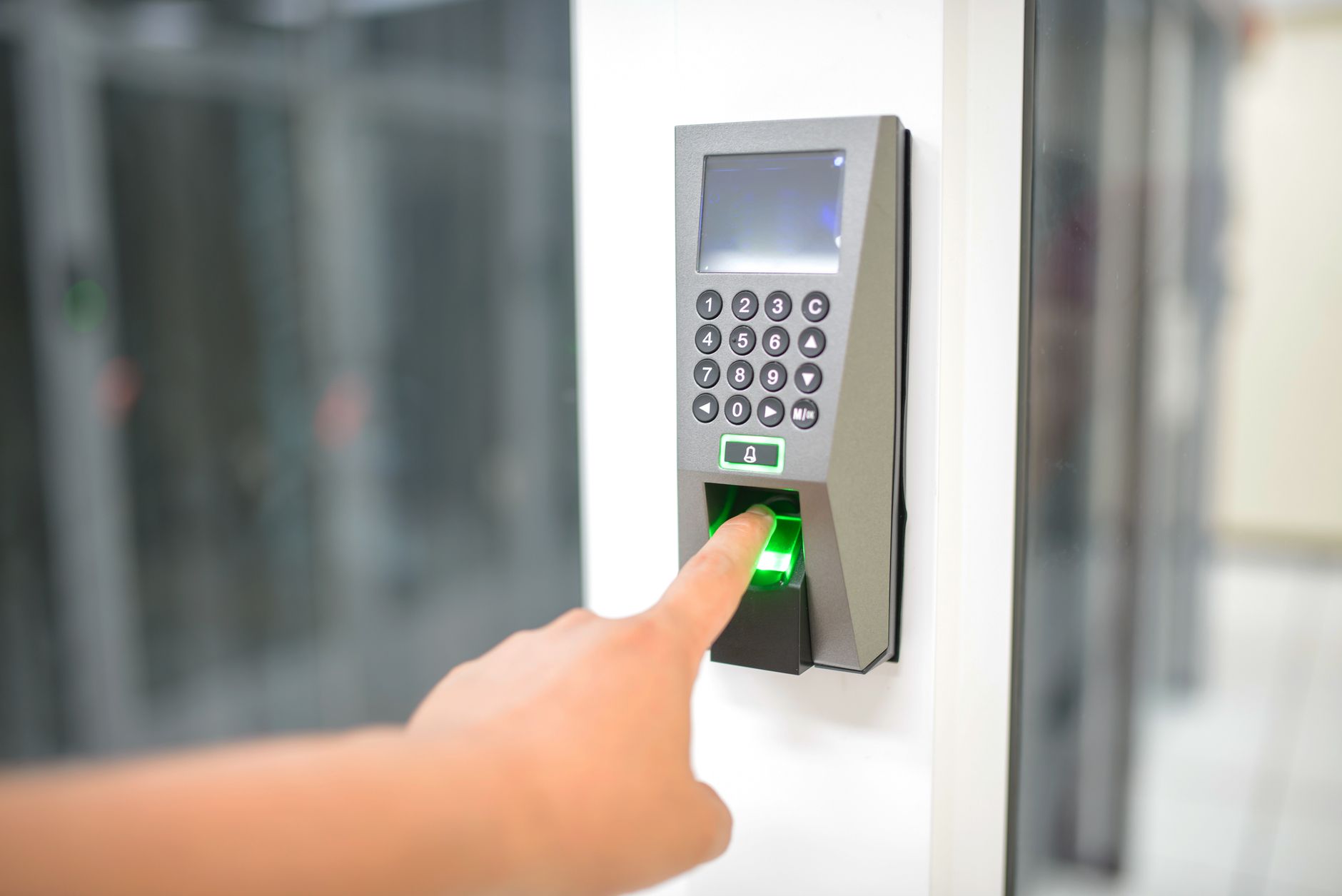
Why passkeys beat passwords (and even text-message codes)
Most account takeovers do not involve clever hacking. They rely on reused passwords from old breaches, or on phishing pages that look exactly like a real login screen. Passkeys address both problems by design.
- Nothing to reuse. Every passkey is unique to one site, so a breach at one company cannot unlock your account somewhere else.
- Nothing to phish. A passkey is bound to the genuine web address it was created for. If a scammer builds a look-alike site, your device simply has no passkey to offer it.
- Nothing worth stealing on the server. A leaked public key is useless to an attacker on its own.
- Faster sign-ins. A glance or a touch is quicker than typing a password and then waiting for a code.
One-time codes sent by text message are better than nothing, but they can still be intercepted or handed over to a convincing phisher. A passkey combines “something you have” (the device) and “something you are or know” (biometric or PIN) in one step, which is why many security teams treat it as a stronger option.
Passwords, codes and passkeys compared
| Password | Password + SMS code | Passkey | |
|---|---|---|---|
| What you do | Type a secret | Type a secret, then a code | Touch, glance or enter device PIN |
| Reusable across sites | Often, sadly | The password part, yes | No, one per site |
| Phishing resistance | Low | Moderate | High |
| Damage if the site is breached | Password can be cracked or reused | Password exposed | Only a public key leaks |
| Works without your device | Yes | Needs your phone number | Needs a synced device or recovery method |
Where your passkeys live
A passkey has to be stored somewhere, and the choice shapes how convenient and portable it will be. There are three common homes.
Your platform’s built-in manager
Apple devices save passkeys in iCloud Keychain and sync them across your iPhone, iPad and Mac (Apple explains the details on its passkeys page). Android and Chrome save them in Google Password Manager, which Google has extended to sync across Windows, macOS, Linux and ChromeOS as well (see Google’s announcement). Windows can also store passkeys with Windows Hello. If you live mostly inside one ecosystem, this is the simplest path.
A third-party password manager
Many mainstream password managers can now create and fill passkeys too. This is the better choice if you mix platforms, for example an iPhone with a Windows laptop, because the same vault follows you everywhere. Check your manager’s help pages to confirm passkey support on each browser and phone you use.
A hardware security key
Small USB or NFC keys can hold passkeys that never leave the physical device. They are excellent as a backup for your most important accounts, and they are common in workplaces with strict security rules. The trade-off is that you have to carry the key and keep a spare.

How to set up your first passkey in 10 minutes
The exact menus vary by service, but the flow is nearly always the same. Start with an account you use every day, so the new habit sticks.
- Update your devices. Install the latest operating system and browser updates so passkey support is current.
- Turn on your screen lock and sync. Make sure your phone has a PIN or biometric unlock, and that your password manager or cloud keychain sync is enabled.
- Open the account’s security settings. Look for wording such as “Passkeys”, “Sign-in options” or “Passwordless”.
- Choose “Create a passkey”. Your device will ask where to save it. Pick the manager you plan to rely on long term.
- Confirm with your fingerprint, face or PIN. That is the whole creation step.
- Sign out and back in. Test the passkey right away, including on a second device, so you know it works before you need it.
- Review your recovery options. Confirm a backup email, phone number, recovery codes or a second passkey are in place.
Signing in on a computer that does not have your passkey? Many sites show a QR code. Scan it with your phone, approve with your fingerprint or face, and the phone vouches for you over a short-range connection. It feels like magic the first time, and it means a borrowed laptop does not have to learn your secrets.
The best security upgrade is the one that also makes your day easier. Passkeys are rare in that they do both.
Common pitfalls and how to avoid them
- Scattering passkeys across too many managers. Saving one in your browser, another in a phone keychain and a third in a password manager makes them hard to find later. Pick one primary home.
- Forgetting the backup plan. If you lose your only device and have no recovery route, account recovery can be slow. Add a second device or a security key for email, banking and your password manager itself.
- Deleting the old password too early. Many services keep your password as a fallback. Leave it in place, but make sure it is strong and unique, until you are confident in your passkey setup.
- Shared family devices. Anyone who can unlock a device may be able to use passkeys stored on it. Use separate profiles or accounts where it matters.
- Assuming every site supports them. Adoption is growing but uneven. For sites without passkeys, a password manager and an authenticator app remain the best combination.
If you want to tighten up your phone at the same time, our guides to Android security settings worth checking and iPhone settings that cut daily friction pair well with this one.
Passkeys at work and for families
In a workplace, passkeys are often managed by the IT team through a company identity provider, and you may be asked to use a specific app or security key. Follow those rules: they exist so that access can be removed quickly when someone leaves, and so a lost laptop does not become a security incident.
For families, the most helpful move is to set up passkeys for the accounts that matter most to less tech-confident relatives, especially email, since email is the reset button for everything else. Sit with them, create the passkey on their phone, and practise one sign-in together. Make sure someone they trust knows how account recovery works.
Your passkey action plan
Use this checklist over the next week. Each step takes only a few minutes.
- Day 1: Update your phone, computer and browser; confirm screen lock and sync are on.
- Day 2: Choose your primary passkey home (platform keychain or password manager).
- Day 3: Create a passkey for your main email account and test it on two devices.
- Day 4: Add passkeys to your password manager account and your most-used shopping or social accounts.
- Day 5: Set up recovery: second device, security key or printed recovery codes stored safely.
- Day 6: Check banking and other financial apps for passkey support, following each provider’s official instructions.
- Day 7: Help one family member or colleague do the same.
FAQ
What happens if I lose my phone?
If your passkeys sync through a cloud keychain or password manager, sign in on a new device with that account and they come back. If a passkey lived only on the lost device, use the account’s recovery options, such as a second passkey, a security key or recovery codes, to get back in and create a new one.
Can a website see my fingerprint or face?
No. Biometrics are checked locally on your device and only unlock the private key. The website receives a cryptographic signature, not your biometric data.
Do I still need a password manager?
Yes, for now. Many sites still use passwords, and a good password manager can store both passwords and passkeys in one place, which keeps things tidy as you transition.
Can I use a passkey on a friend’s computer?
Usually, yes. Choose the option to sign in with a phone or another device, scan the QR code, and approve on your phone. Nothing is saved to the friend’s computer unless you choose to save it.
Are passkeys completely unhackable?
No security method is perfect. Passkeys remove the most common attacks, reused and phished passwords, but you should still keep devices updated, protect your screen lock, and be cautious of anyone asking you to approve a sign-in you did not start.



Leave a Reply